Notification Fatigue Fix: Quiet Your Phone, Keep Urgency
Reclaim Your Attention: Practical Steps to Reduce Notification Fatigue
Constant pings, banners, and badges can fragment concentration, elevate stress, and make it harder to finish meaningful work. A better approach isn’t deleting every app—it’s designing a notification system that serves priorities, protects deep focus, and still keeps important people and information reachable.
Why notifications feel exhausting (and why willpower isn’t enough)
Notification fatigue isn’t a character flaw. It’s the predictable result of an attention environment built to interrupt. Every “quick check” forces a context switch, and switching costs add up: it takes time to re-enter the flow of a task, and the quality of thinking often drops after repeated interruptions. Research summaries on attention and switching costs echo this pattern across work and daily life.
Notifications also exploit variable rewards: a few are genuinely important, but many are trivial. That unpredictability trains reflexive checking—your brain learns that the next glance might contain something rewarding. Add badges and lock-screen previews, and you get visible “open loops” that tug at attention even when the phone is face down.
A sustainable fix relies on environment and settings, not constant self-control. When the default is quiet and only high-signal alerts break through, focus becomes the path of least resistance.
For additional background on multitasking and switching costs, see the American Psychological Association (APA) overview and the Harvard Business Review productivity research hub.
Set an “attention budget” for your day
Instead of battling notifications moment-by-moment, decide ahead of time where attention should go. An “attention budget” is a simple plan that limits when you’re interruptible.
- Choose 2–3 daily focus blocks (60–90 minutes each) where interruptions are minimized. Protect them like meetings.
- Define what counts as urgent: calls from favorites, calendar alerts, security/authentication prompts, and truly time-bound logistics (like a delivery pickup window).
- Decide check-in windows for non-urgent items (for example, 11:30 a.m. and 4:30 p.m.) so updates don’t drip in all day.
- Pick one place for non-urgent updates (a dedicated inbox, a single messaging thread, or a to-do capture list) so alerts don’t compete across apps.
This shifts the question from “Should I look right now?” to “Is this within my planned attention budget?”
Run a quick notification audit (10 minutes, no apps required)
A short audit can cut interruptions dramatically without complicated tools.
- List the top 10 apps that interrupt you most (social, news, shopping, group chats, games, productivity tools).
- Name each app’s purpose: time-sensitive, nice-to-know, or not needed.
- Turn off “not needed” completely; convert “nice-to-know” to scheduled summaries or in-app checking only.
- Keep “time-sensitive” but reduce the format: silent delivery, no preview text, and no lock-screen display where possible.
Notification triage cheat sheet
| Type | Examples | Keep alerts? | Best delivery |
|---|---|---|---|
| Time-sensitive | Calendar reminders, delivery pickup window, fraud alerts | Yes (limited) | Sound or prominent banner; keep count low |
| Important but not urgent | Direct messages from key people, project mentions | Maybe | Silent banner; no lock-screen preview; check during windows |
| Nice-to-know | News updates, social likes, promotional pings | No | Digest/email summary or in-app only |
| Noise | Streaks, “someone posted,” generic offers | No | Off |
Make your phone less “reactive” with a few high-impact settings
Small settings changes can remove the “grabby” parts of the notification experience.
- Silence most notifications by default and allow exceptions deliberately (favorites and critical apps).
- Disable lock-screen previews for messaging and email so your phone isn’t broadcasting unfinished conversations.
- Turn off badges for apps that trigger compulsion (social and shopping). Badges are powerful attention magnets.
- Create Focus/Do Not Disturb profiles: at minimum, build Deep Focus (work/study) and Recovery (evenings).
- Group notifications by app and keep banners temporary so they don’t linger like a running to-do list.
- Reduce visual clutter: consider grayscale during focus blocks to lower the “shiny object” effect.
Tame messaging without missing what matters
Messaging is often the biggest source of interruptions because it mixes genuine urgency with social pressure. The goal is a calm default plus a reliable escalation path.
Build a low-friction routine that sticks
A guided plan for reducing notification fatigue
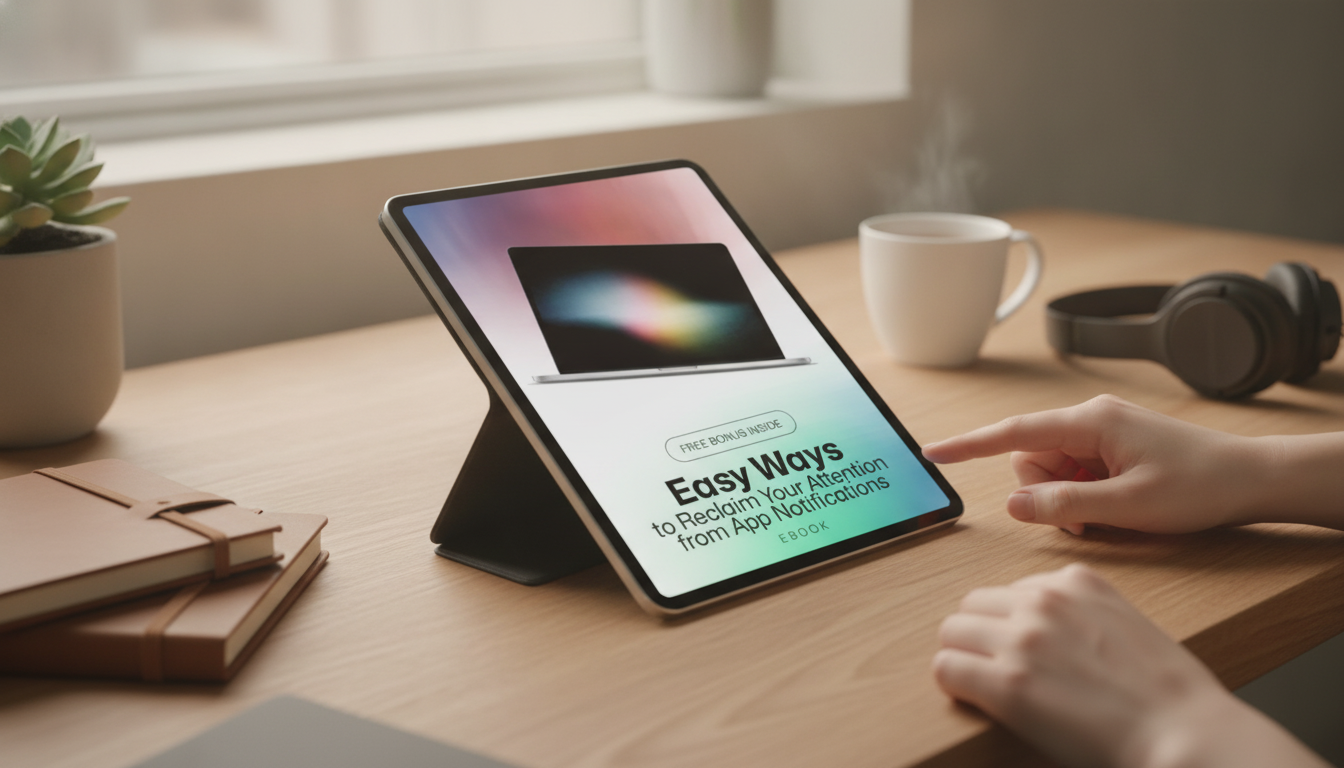
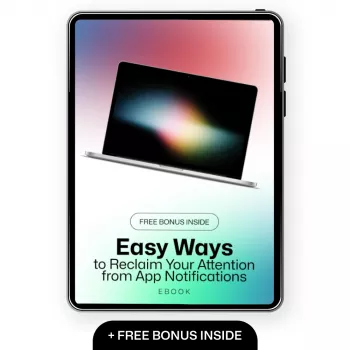
If a step-by-step plan would help turn these tactics into a repeatable system, Easy Ways to Reclaim Your Attention from App Notifications – Reduce App Notifications Fatigue eBook walks through what to keep on, what to make silent, and what to remove entirely—without losing access to critical people and information.
For creators and entrepreneurs who want to stay visible without staying reactive all day, AI Prompts for Content Calendars | Digital Download eBook, Social Media Content Planner Prompts, AI Marketing Guide for Creators & Entrepreneurs can help batch planning into fewer, calmer check-ins—so “content work” doesn’t become another reason to keep every alert turned on.
FAQ
How many notifications should be allowed each day?
There isn’t a universal number; aim for only time-sensitive and truly important alerts. Start with essentials only for a week, then add back sparingly—fewer, higher-signal notifications tend to reduce anxiety and improve follow-through.
Will turning off notifications make it easier to miss something urgent?
Not if you build an exception list (favorites, critical apps) and use Focus modes that still allow those contacts through. Everything else can be handled in scheduled check-in windows so you stay informed without constant interruptions.
What should be turned off first to reduce notification fatigue quickly?
Disable promotional pings, social engagement alerts, “breaking news,” shopping notifications, and game alerts first. Next, remove badges and lock-screen previews for the apps that trigger the strongest urge to check.









Leave a comment